
Sometimes the light needs to change, sometimes the landscape needs work, sometimes the scene just needs a bit of life. I built CG Crafts  to make these edits easier in my own projects, and I'm now preparing the same tools so you can use them in yours. Use your own API key and pay your AI provider directly for generation. You don't need to buy additional credit packs from .
The licence is charged separately. Your provider's own fees and terms apply.
Leave your email and I'll share the launch news and pricing with you.
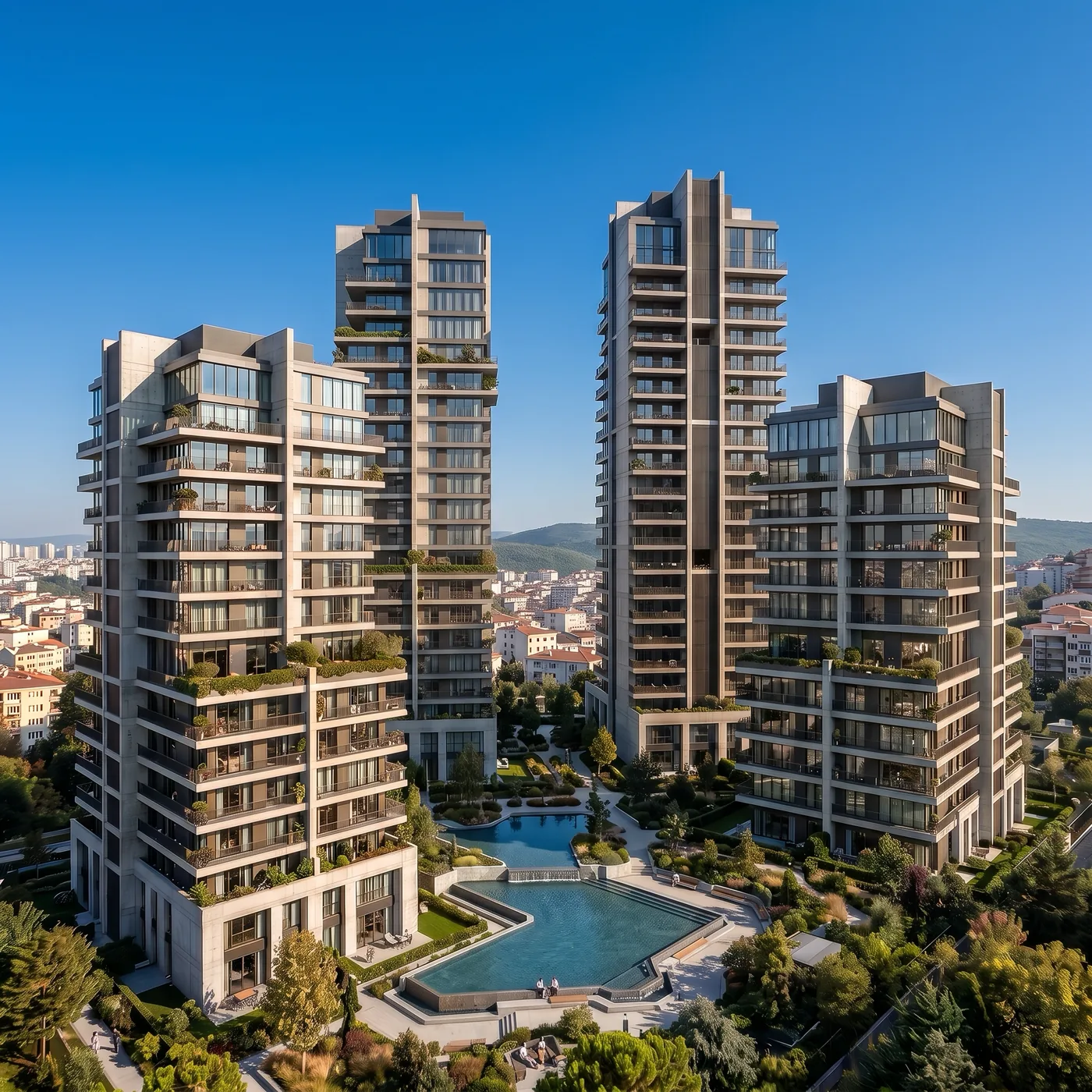
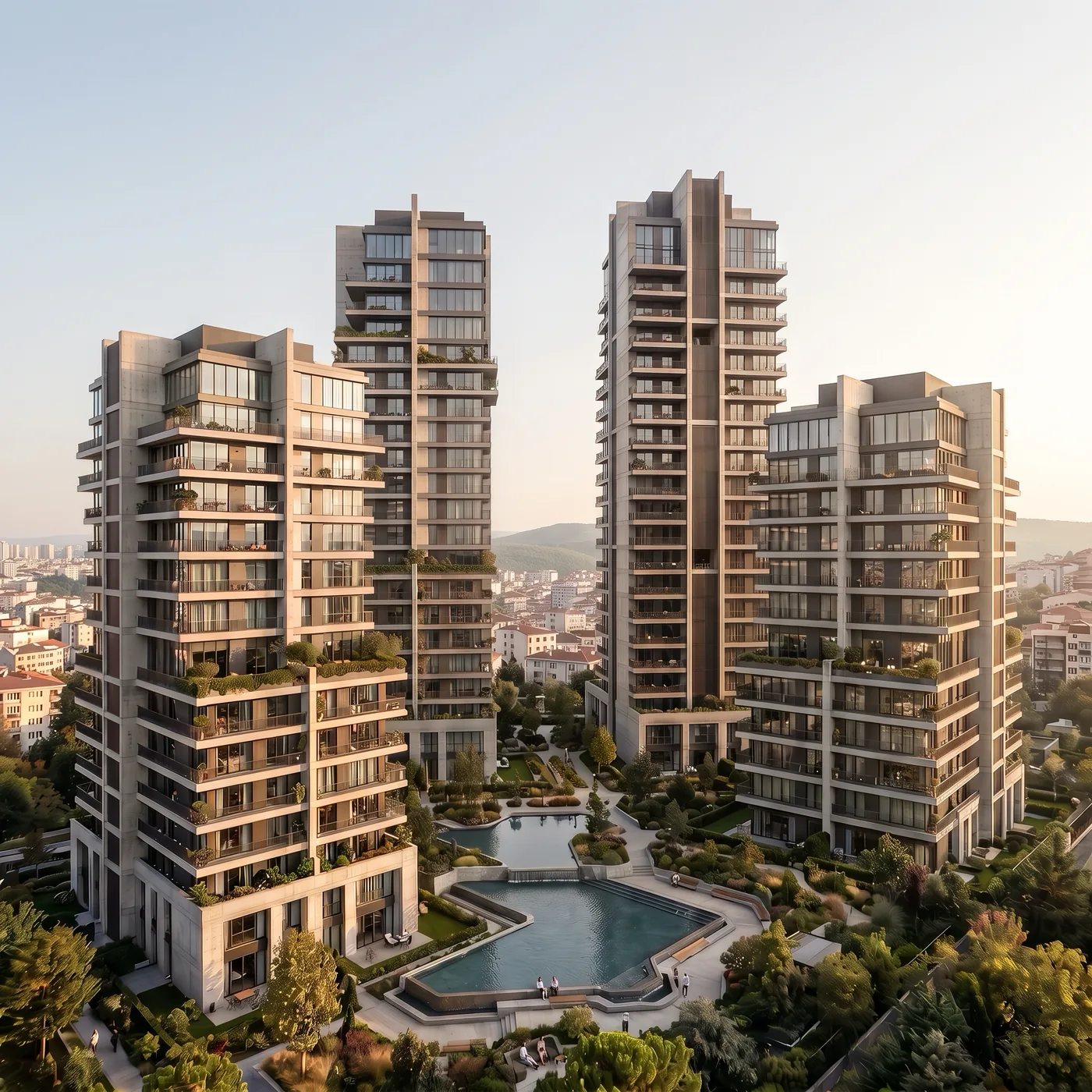 output. Same scene, midday light to golden hour.
Your own API account. Direct generation cost.
is an app you install on your computer. You generate images with the AI account you connect, and the cost goes straight to that account; you don't need to buy credits through . Your API key stays on your computer, in the operating system's credential store.
If you have a render or an idea, you start with the desktop app. When your scene is open in 3ds Max and the project is still taking shape, you use the script.
You can edit your finished renders or create images from scratch. New angles, upscaling and video are in the same app.
Desktop app →You can prepare previews and approval images without leaving your Max scene.
3ds Max script →Image to Image, Text to Image and Image to Video sit in the same window. Since you can switch between connected APIs, you don't need another program to edit an image, upscale it and then turn it into a video.
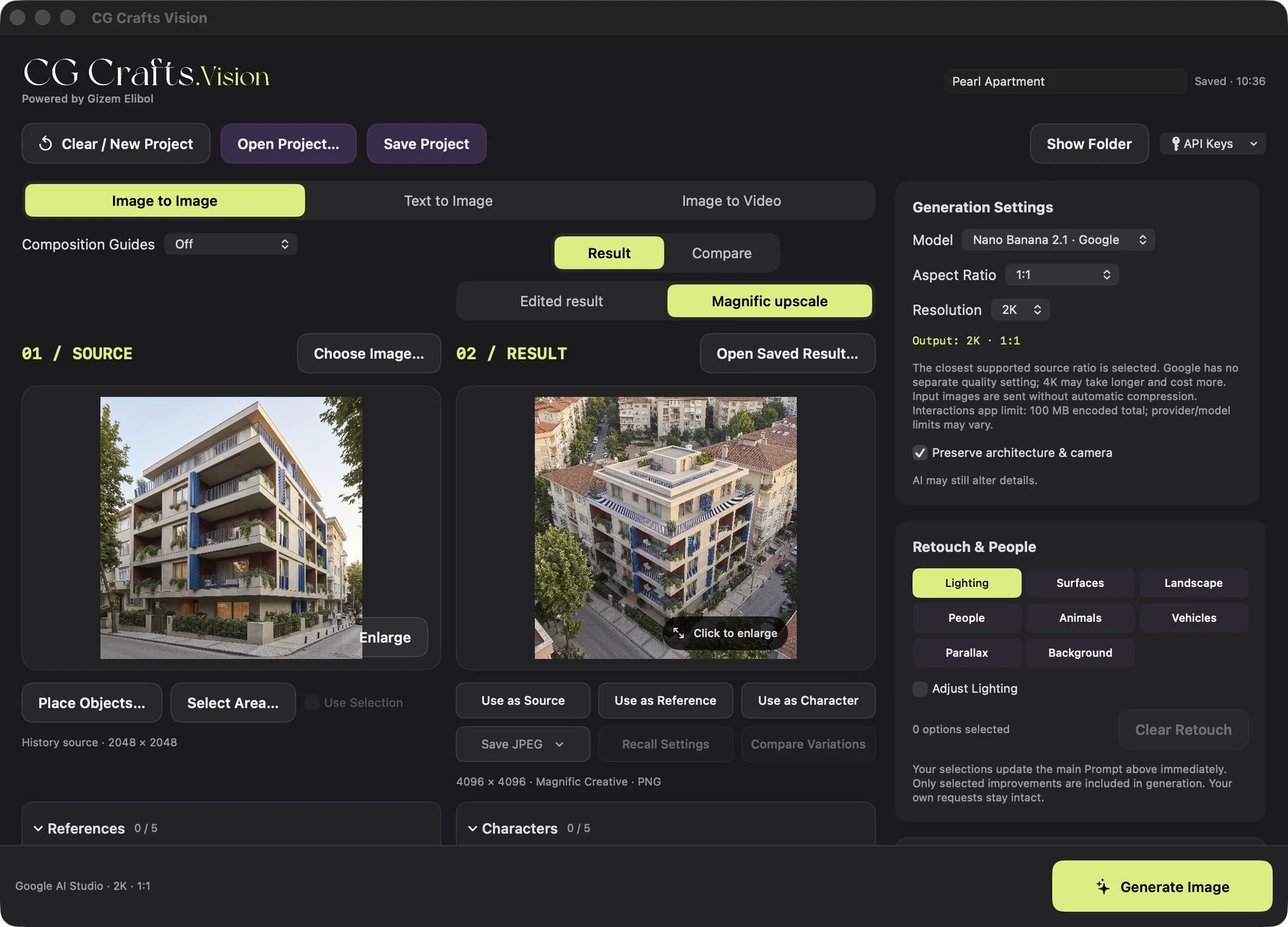
You can load your render, make edits such as lighting, materials, landscape or people, then upscale the result and get it ready for delivery. The camera angle and the scene are yours; adds the final layer on top.
You can visualise a design idea from text, choose the result you like as your hero, and create other angles of the same building, different times of day, or a video.
You can reopen a saved project and carry on with your work. You can also bring back the prompt and settings of your last 30 generations from the history with Recall Settings.
The same settings may not give exactly the same image, but you know where you started.
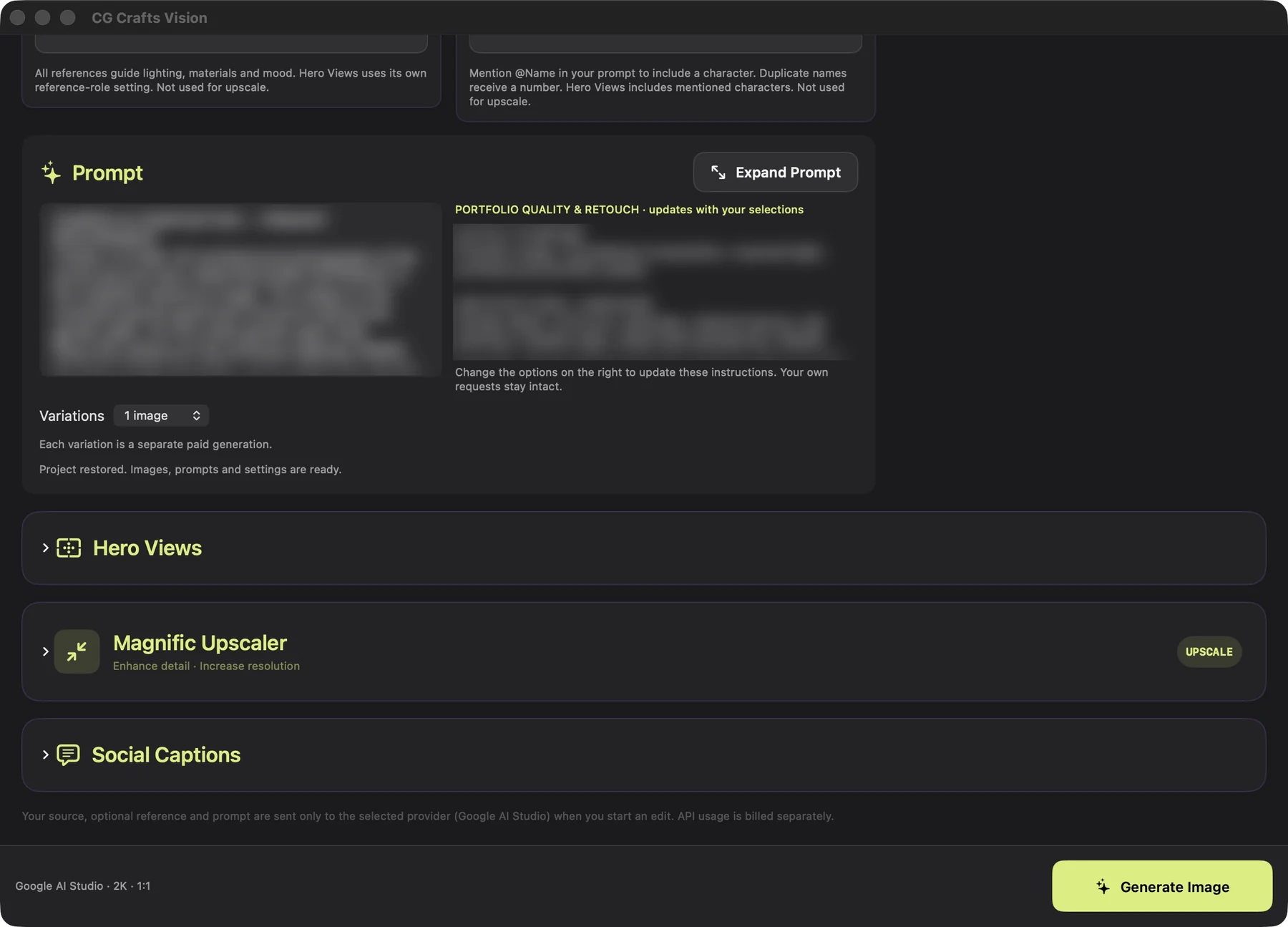
Your source images, results and videos are saved automatically in your project folder.
You can reopen a saved project and carry on with your edits; no need to set up a new project each time.
You can prepare captions for work you want to share inside the app too. Whether you use it is entirely up to you.
Starting from an image you like, you can try different camera angles of the same building: an aerial, a detail, or a close-up with people.
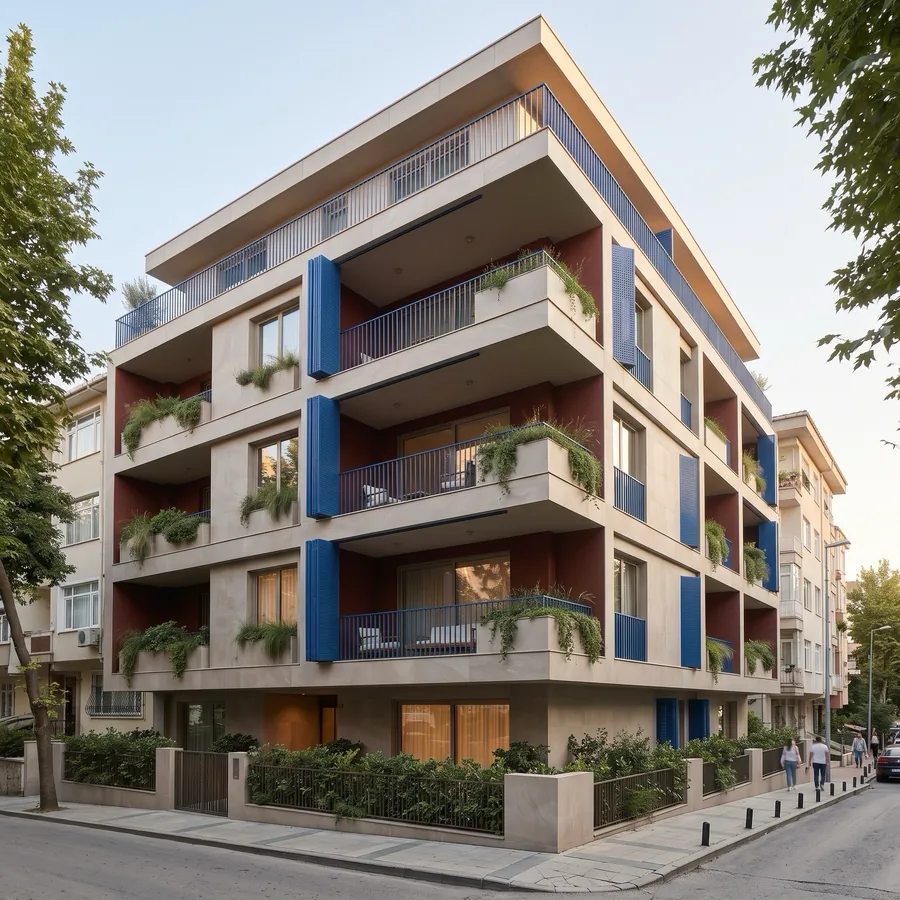 Source
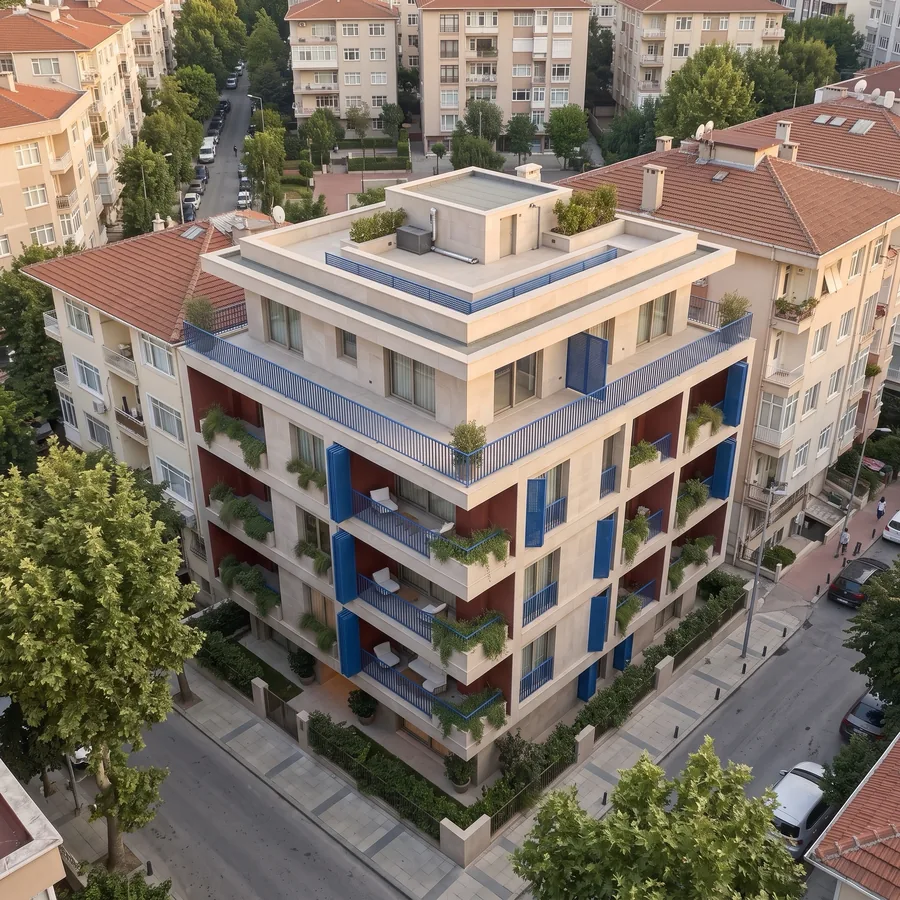 New angle
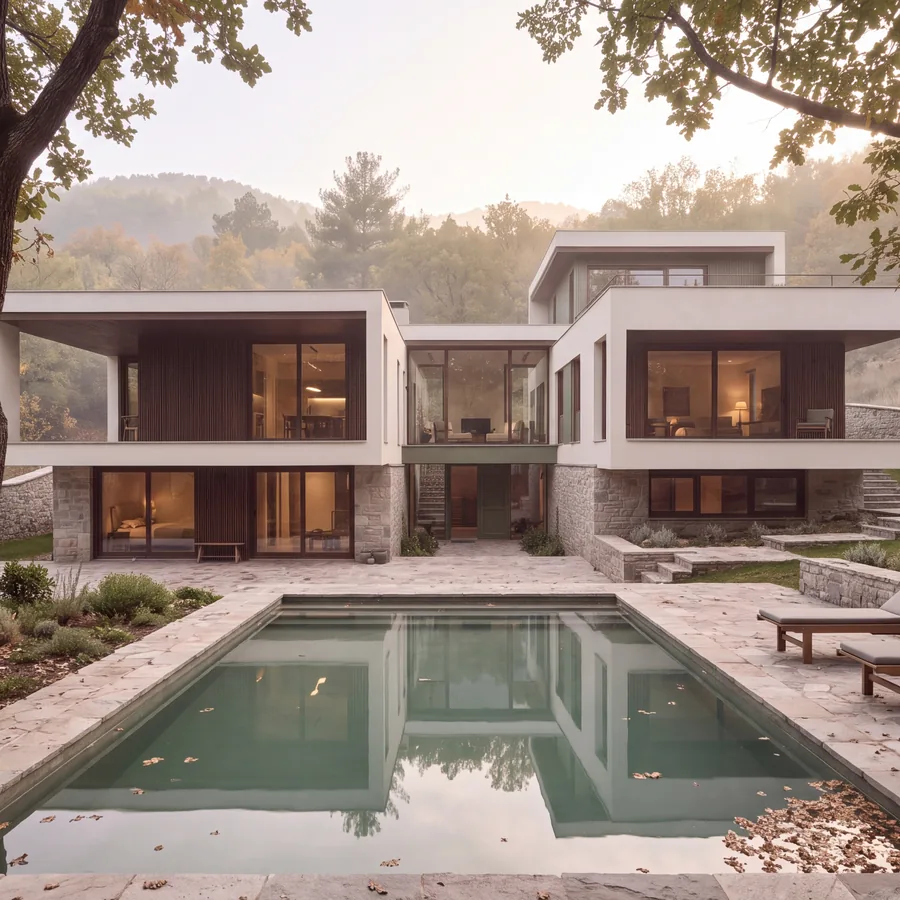 Source
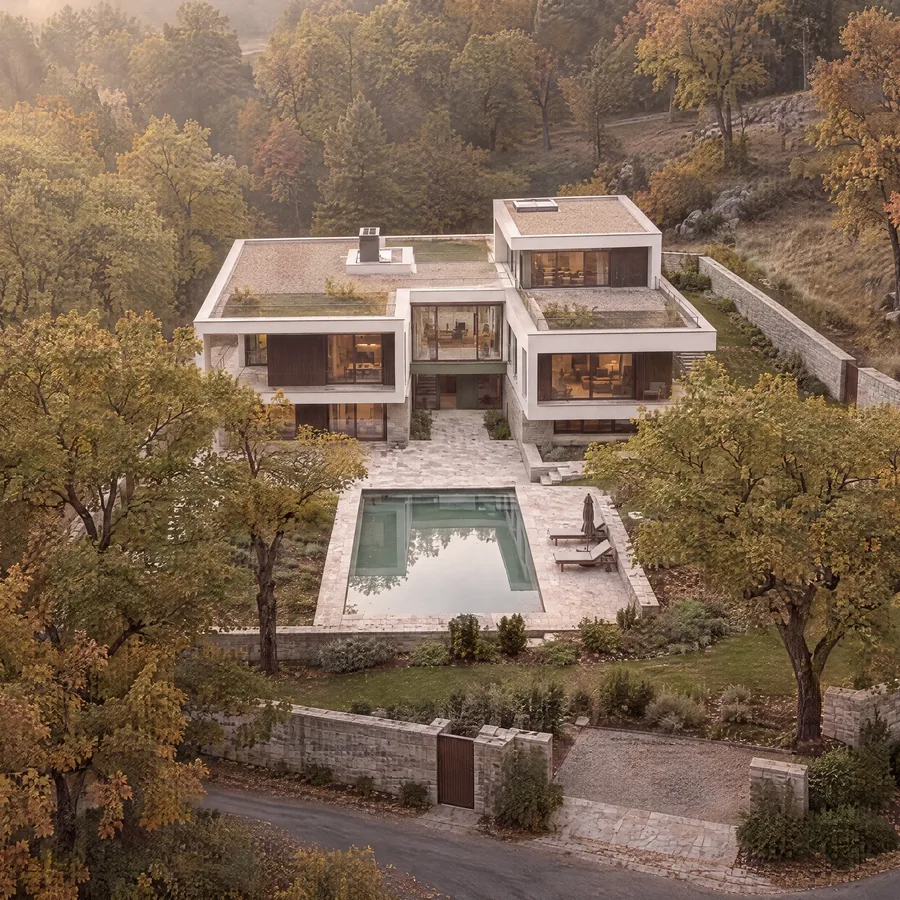 New angle
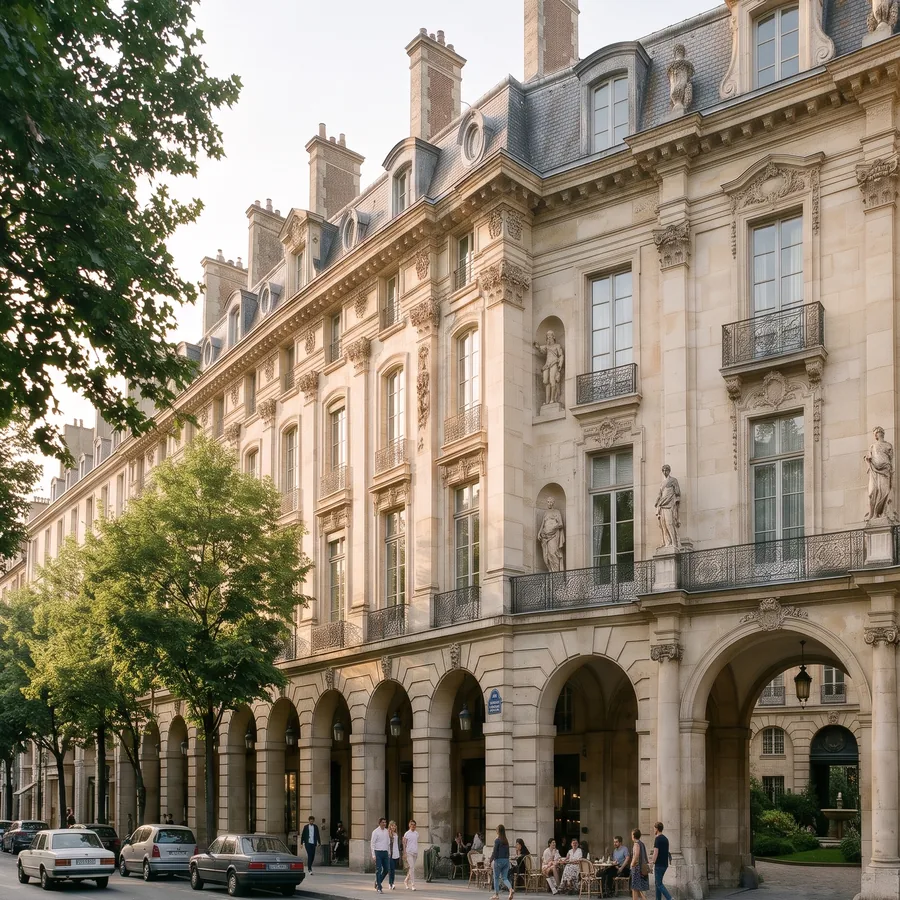 Source
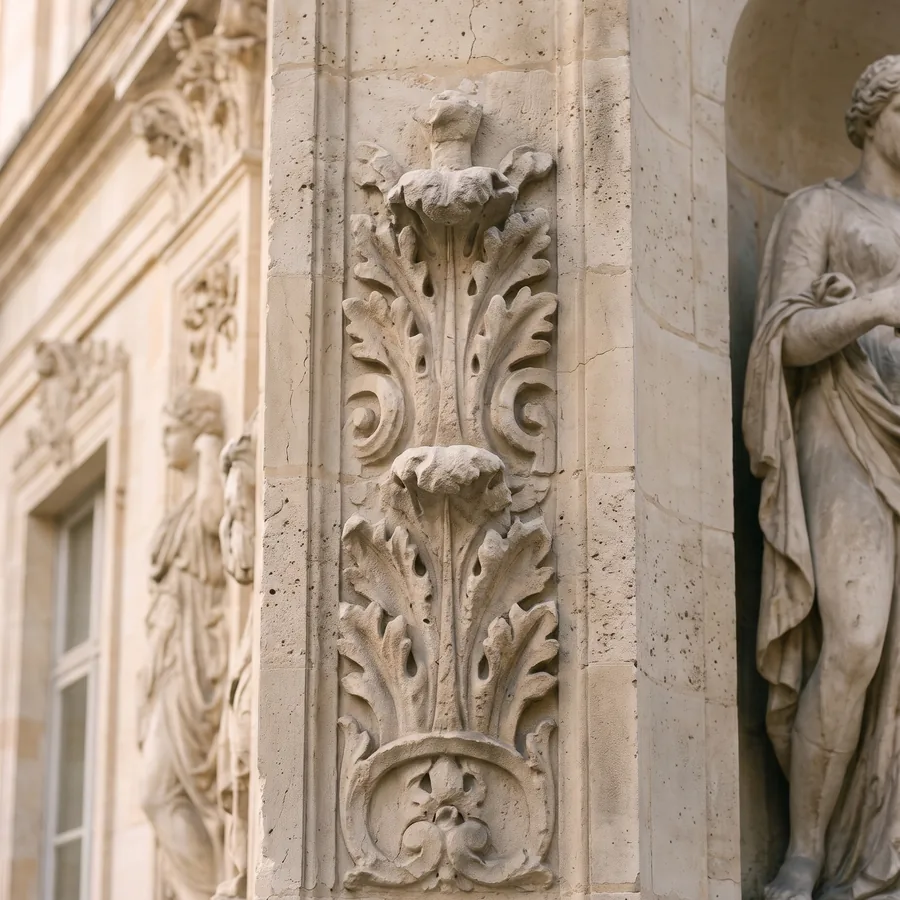 New angle
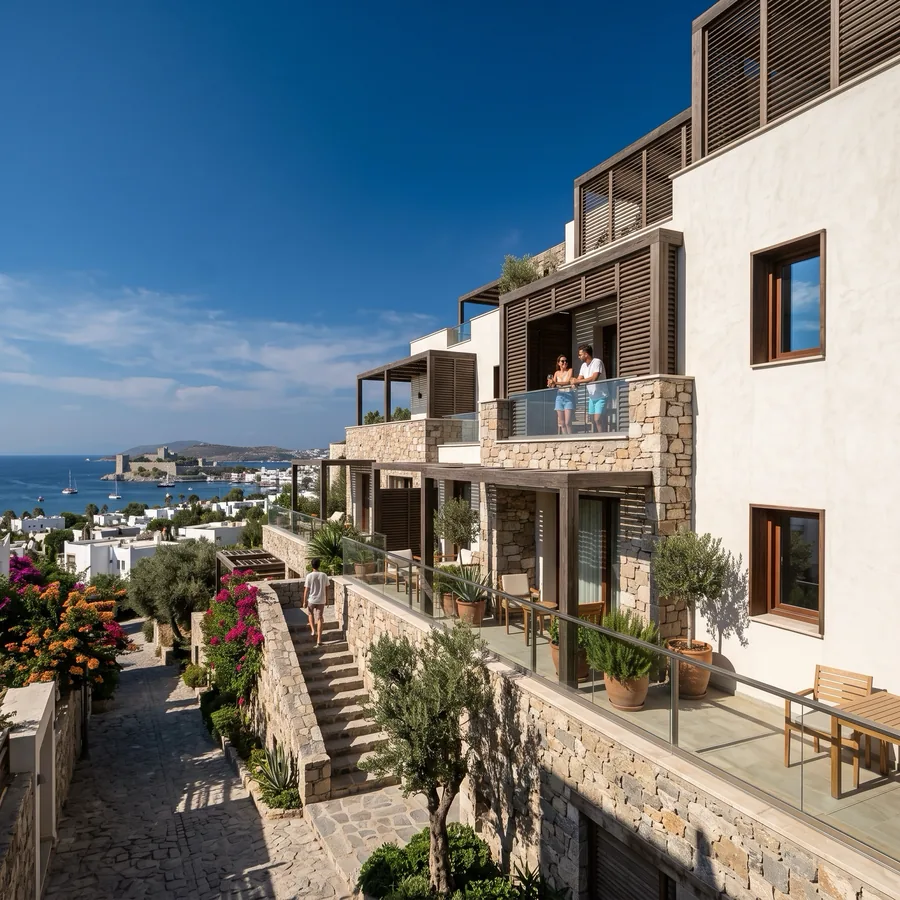 Source
 New angle
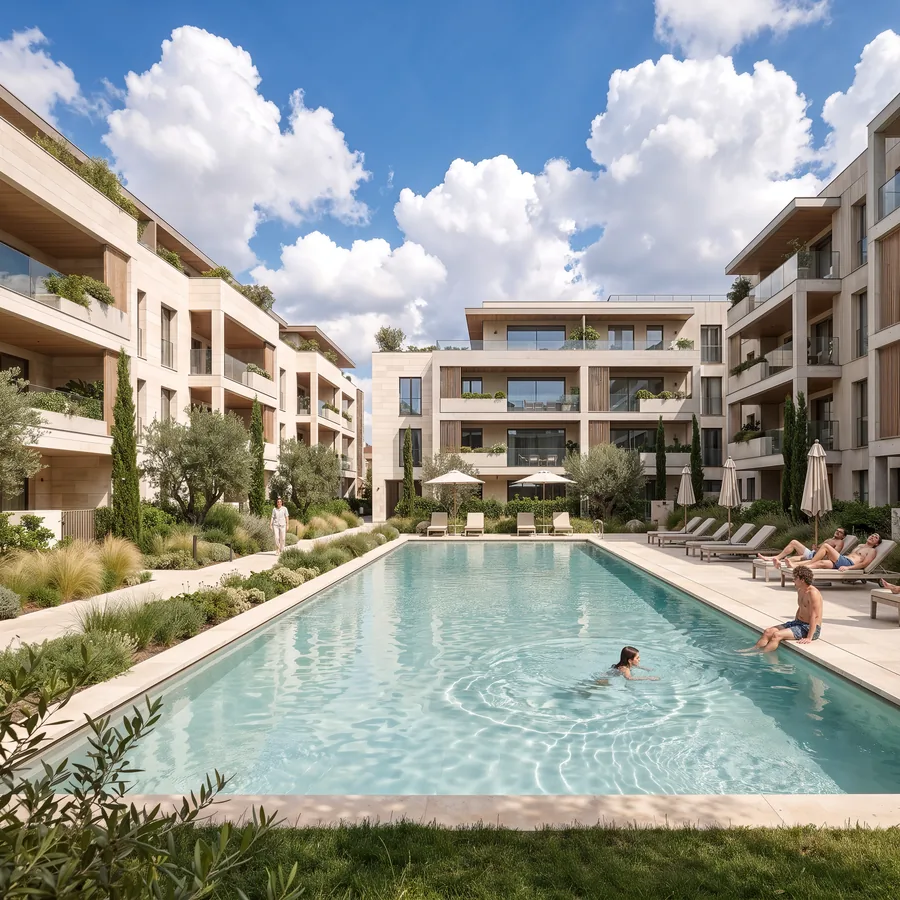 Source
 New angle
s are generated from the image; no 3D model of the scene is built, so details can differ a little from the source.
Leave your email and I'll share the launch news and pricing with you. If you're interested in joining the beta test, you can note that in the form too.
Early in a project, you often need to explore different lighting, compositions and layouts. Capture your camera view and use to create alternatives directly inside 3ds Max, ready to discuss with your client.
Image editing, references and architecture-specific retouch tools.
Everything in Light, plus text to image, character references, video and upscale.
Currently tested on 3ds Max 2026.
Leave your email and I'll share the launch news and pricing with you. If you're interested in joining the beta test, you can note that in the form too.
Short, clear answers.
is in early access. If you join the list for the product you're interested in, I'll share the launch date, pricing and beta news by email. To use it, you'll need an API key from your own AI provider account.
If you want to start from a render or an idea and finish the job in one app, the desktop app. If you want quick drafts and approval images while your scene is open in 3ds Max, the script: Light if image editing is enough, Full if you also want text to image, video and upscale.
The instructions focus on keeping perspective, proportions and materials, but there's no guarantee with AI. You should always check every result before delivery.
It brings back the prompt and settings of your last 30 generations from the history, so you continue from the same point. But the same settings may not give exactly the same image.
Facial detail and text accuracy can vary with the model you use, the source image and the generation. Your preservation request is passed to the model, but there's no guarantee they'll be kept exactly.
No, it captures the active viewport in Max. It doesn't replace your render engine.
Currently tested on 3ds Max 2026. No promises for other versions yet.
No. A short sentence about what you want is enough; architectural instructions are added automatically based on the categories you pick. If you like, you can edit the resulting prompt yourself.
The licence model and price aren't set yet; I'll share them with the list first. Image generation fees are separate from the licence and go straight to your own provider account.